
Headings and titles
Using heading structure and unique titles is a fundamental concept that can support digital accessibility in all of your content.
Titles and headings are short text phrases that help people understand and navigate content in any written medium, including documents, emails, and websites.
Headings give meaningful structure to digital content, helping all users find the information they need. Applying heading styles in document editors like Microsoft Word, Google Docs, or WordPress will create an outline that screen reader users can access to navigate through content quickly and effectively.
A title is part of a webpage’s or document’s metadata, while headings are used to structure the content within a webpage or document.
Think of headings as a content outline for your document or webpage. They create a hierarchical structure that helps organize the main points, and give assistive technology users landmarks to help navigate through the content. Heading structure for a webpage about cooking techniques might look like this:
- Cooking techniques
- Cooking with oil
- Sautéing
- Deep-frying
- Cooking with butter
- Pan-searing
- Basting
- Cooking with oil
Heading levels should be applied in order of their rank, or level. The top of the hierarchy should be a heading level one (h1). Subsequent headings should be nested by their rank from h2 to h6. The headings for the cooking techniques webpage would be ranked as the following:
- (h1) Cooking techniques
- (h2) Cooking with oil
- (h3) Sautéing
- (h3) Deep-frying
- (h2) Cooking with butter
- (h3) Pan-searing
- (h3) Basting
- (h2) Cooking with oil
Only use one h1 heading for the title of a document or webpage. There are limited exceptions for documents that contain more than one title, such as an academic journal with multiple written pieces.
Skipping heading levels can cause confusion — for example, following an h2 with an h4 — and should be avoided.
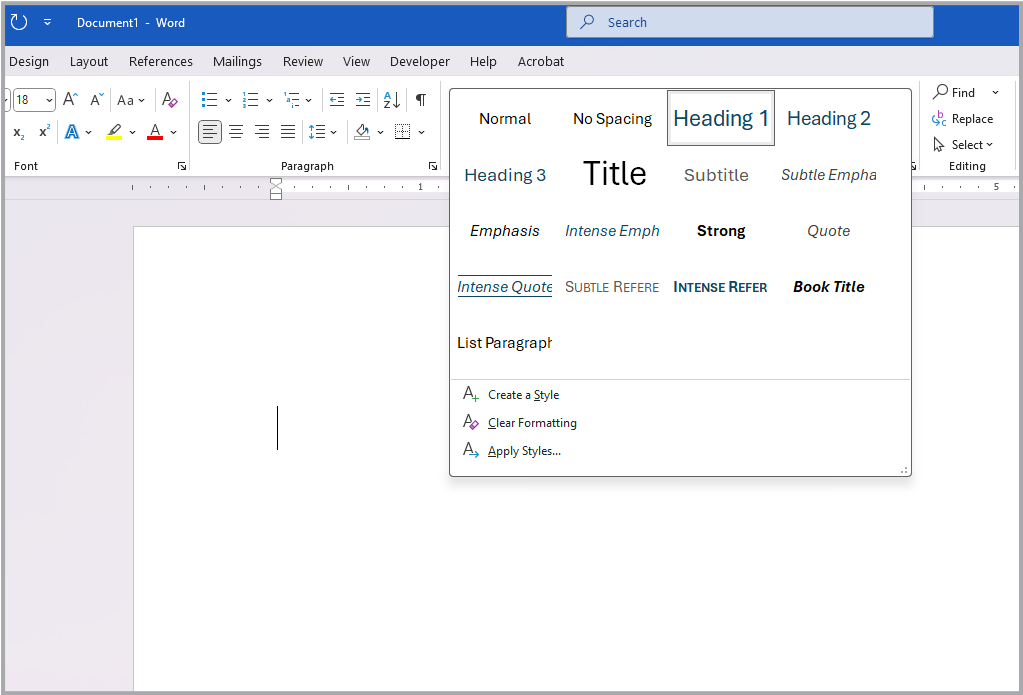
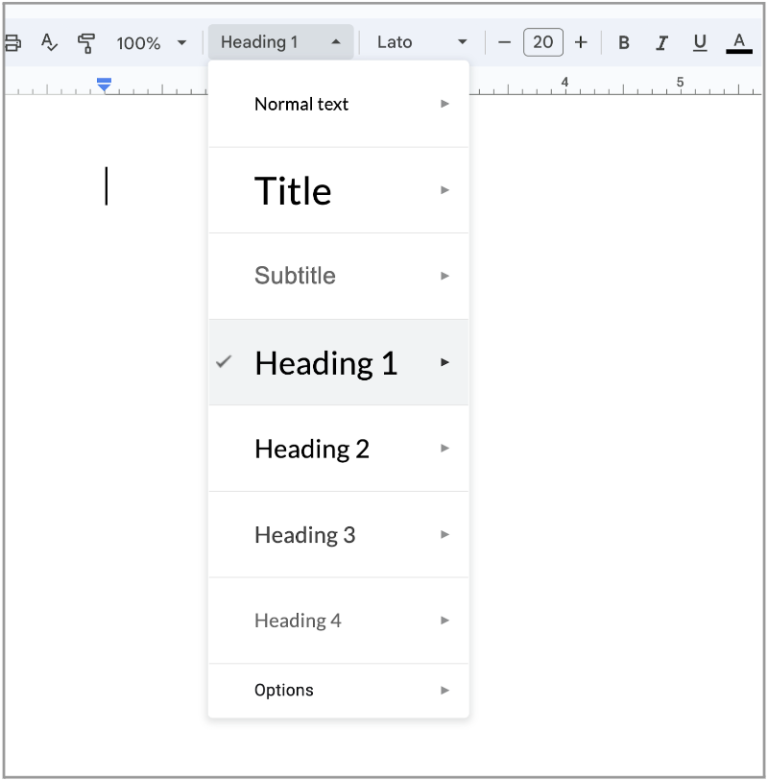
Assistive technologies like screen readers generally don’t convey visual styling like bold text, color, or larger font sizes. This is why it’s important to use a heading style to introduce each new content section — do not rely on visual text emphasis alone to create document structure. You can modify the appearance of default heading styles if you’d like to change their font, size, or color.
There is no limit to the number of headings you may have in a document or webpage. Longer documents and webpages typically have more headings because they contain more information, and chunking content into sections makes it easier for people to read and find what they need.
- Add a unique title to your website or document that matches the content of the page
- Use heading level one (h1) only once for the title of a document or webpage
- Use remaining headings in descending order without skipping levels
Fundamentals












Download the checklist
Download the digital accessibility fundamentals checklist PDF to help you keep track of the core principles of accessibility while creating and editing digital resources.
Get help from the Center for User Experience (CUE)
We partner with you to create accessible, usable, and inclusive digital spaces through free evaluations and consultations.