Make it accessible
Last updated:
UW–Madison is committed to ensuring our digital campus is accessible and free from barriers for all members of the university community.
In these guides, learn about best practices for making your content digitally accessible. Reach out to the Center for User Experience for more digital accessibility resources and support.
Learn the fundamentals
There are common building blocks that support digital accessibility across all content types. This fundamentals guide gives you the basics to help you get started.
Documents
Learn how to apply best practices and improve the accessibility of your documents, PDFs, slideshow presentations, and other file types.
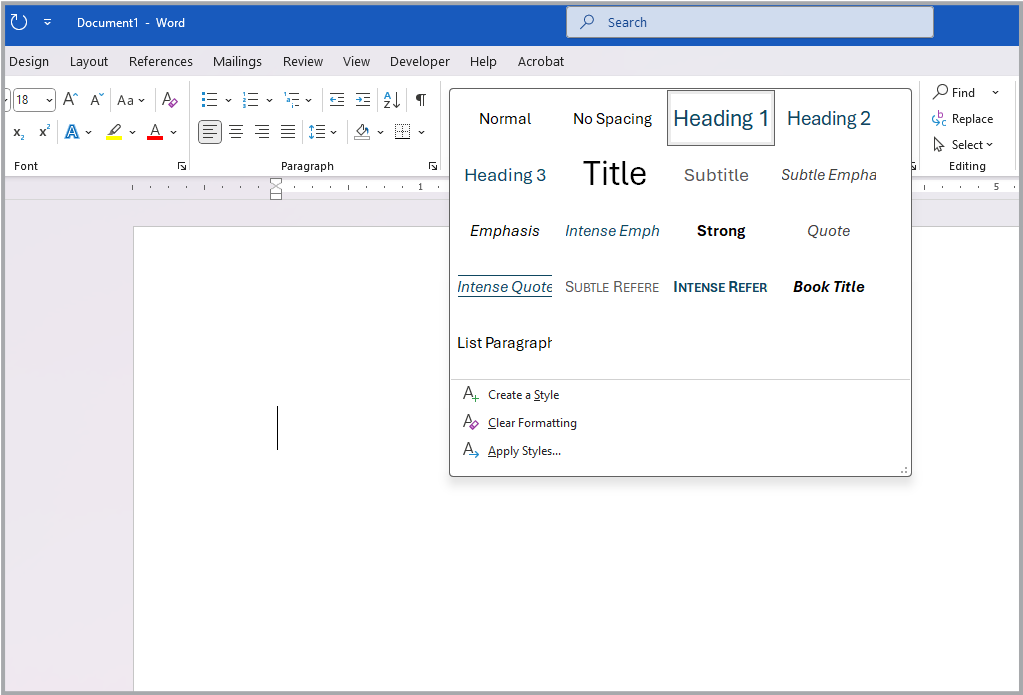
Document accessibility
Follow these basic steps to increase the accessibility of your Microsoft Word and PowerPoint files, Google documents and slides, and Adobe InDesign and PDF files.
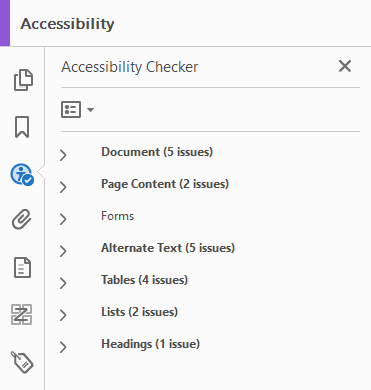
Testing document accessibility
Use this guide to learn how to check Microsoft Word and PowerPoint, Google Docs and Slides, and PDF documents for accessibility using each platform’s built-in accessibility checkers.
When to use a web page instead of a document
Web pages are generally best for sharing content online. This guide explains the differences between web pages and documents, reviews the benefits of using web pages, and includes a decision tree to help you determine the best format for your content.
Course content
All students benefit from accessible course content. The following resources will help you to create an accessible and inclusive foundation so that all students can access course materials and fully participate in the learning experience.
Course material accessibility
This guide is for instructors and instructional designers who are creating Canvas course content, including documents. Follow the basic steps in this guide to increase the accessibility of your course materials.


Universal Design for Learning
Universal Design for Learning (UDL) is a flexible approach to teaching and learning that works to benefit the whole diversity of learners.
Images and multimedia
Alt text, captions, transcripts, and audio descriptions make media content more accessible to everyone and help to ensure that your content is compliant with the Americans with Disabilities Act. Increase the accessibility of your images and multimedia with the following resources.

Alternative text
Write clear, concise alt text that enhances accessibility and supports your content.

Complex images
Ensure that complex images and data visualizations are accessible for all users, including people with disabilities.

Multimedia
Learn about best practices for captions, transcripts, and audio descriptions to ensure that videos, audio clips, and other multimedia content are accessible for all users, including people with disabilities.

Media captioning and transcription
UW–Madison has contracts for captioning, transcription, and audio description services from several vendors. This KnowledgeBase article compares the costs of these professional media captioning services.
Websites and applications
Creating and using accessible websites and applications is vital for inclusivity and the success of students, faculty, and staff at UW–Madison. Use the following resources to help create accessible, user-friendly resources for all.
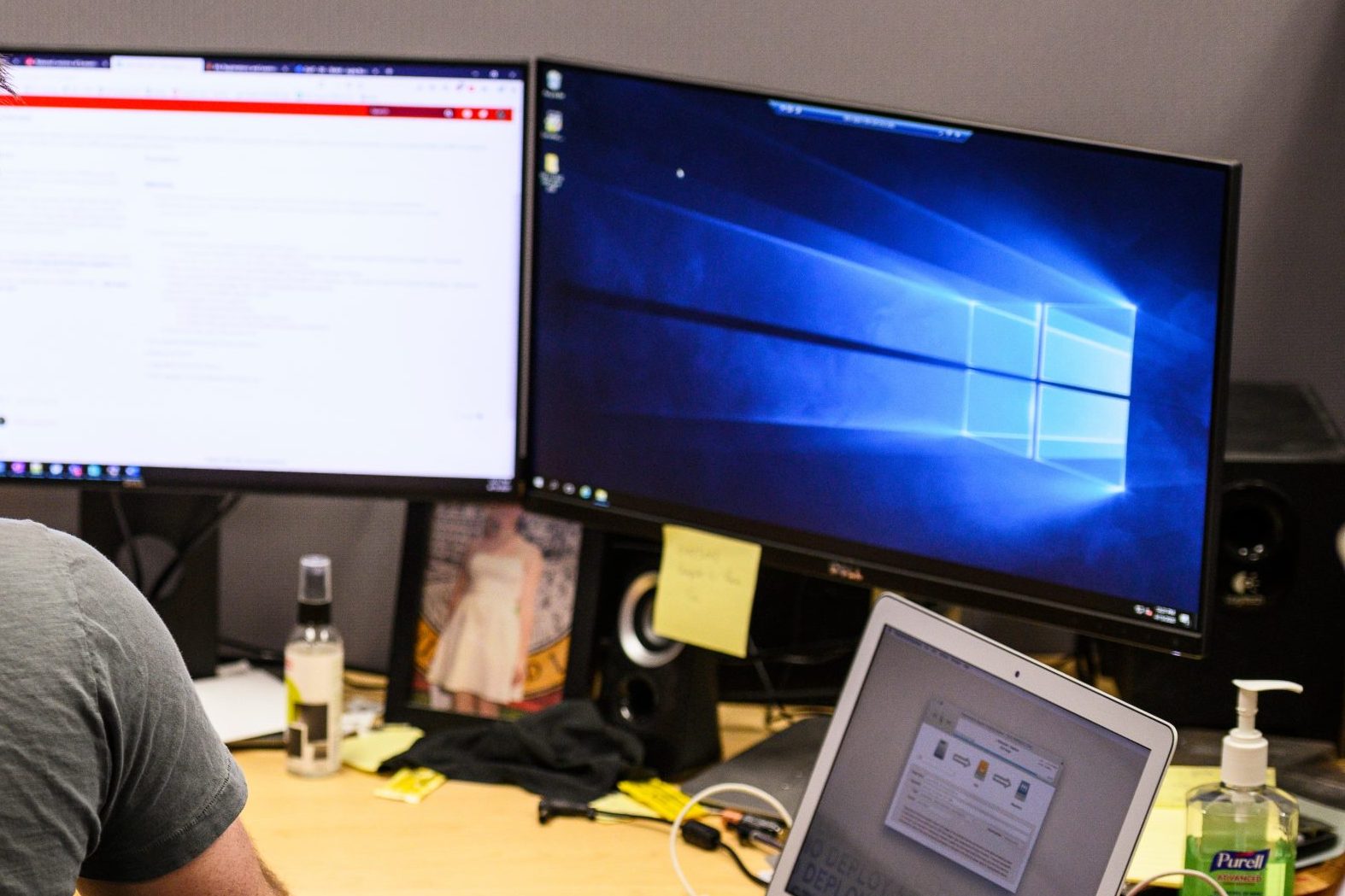
Websites and web applications
For developers of websites and web applications, focus on accessibility from the start to help you create digital experiences that everyone can use.

Testing web accessibility
Use this guide to learn how to test websites, web applications, and mobile applications for accessibility and assistive technology support.
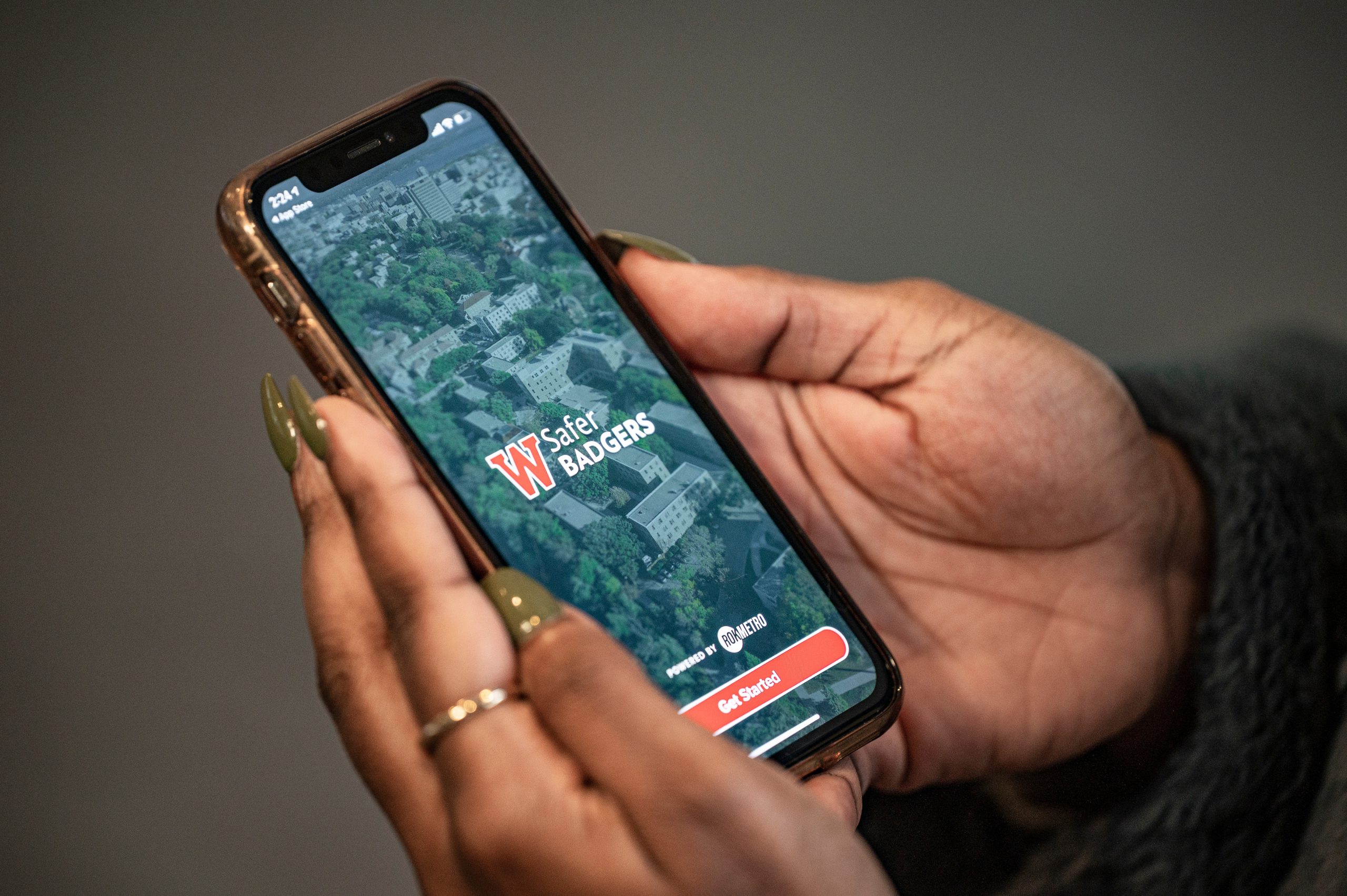
Mobile applications
While the same best practices for web accessibility apply to mobile apps, there are some additional considerations when designing for mobile devices.

KnowledgeBase content
To create KnowledgeBase content that everyone can use, start by applying the fundamentals of digital accessibility. Read this guide for additional tips on creating accessible KB documents.
Social media and email
Increase the reach of your communications with more accessible social media posts and emails.
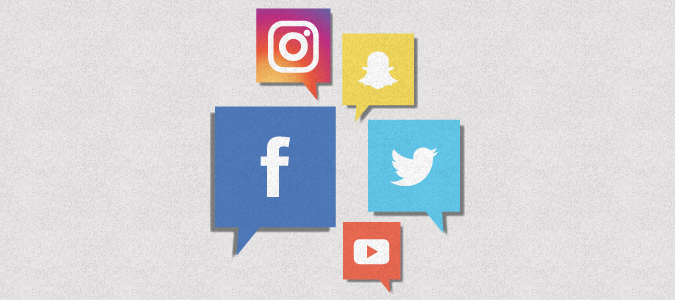
Social media accessibility
You can make social media posts on Instagram, Twitter/X, Facebook, LinkedIn or other platforms accessible. In this guide, we discuss what to keep in mind when posting to social media.
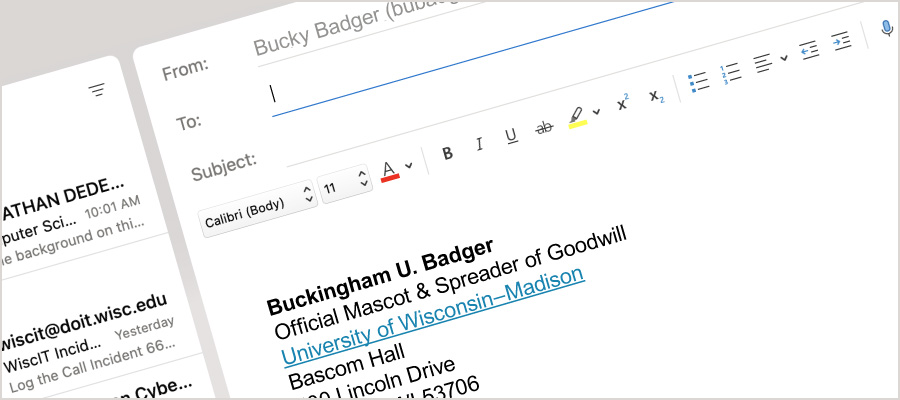
Email accessibility
Apply best practices for accessibility and usability to your emails and other communications. To help readers understand your intended message, craft your emails with these tips in mind.
Purchasing
To ensure the accessibility of all digital experiences provided by the university, decisions about which products to procure must consider accessibility early and throughout the process.

Purchasing accessible technology
This guide shares resources for considering digital accessibility during procurement, including language for requests for proposals (RFP) and contracts, as well as support offered by the Center for User Experience.
Accessibility evaluation
Before procuring applications and software, you can request an accessibility evaluation from the Center for User Experience to check for accessibility and usability barriers. The evaluation service is free.
Meetings and events
Whether you are presenting, holding a meeting, or hosting another type of event, it is important to consider accessibility and inclusion for all participants.
This guide covers best practices for in-person, hybrid, and virtual events and gatherings.
Get help from the Center for User Experience (CUE)
We partner with you to create accessible, usable, and inclusive digital spaces through free evaluations and consultations.